
 byDresium
If you run a fashion store on WordPress, you already know the question every shopper is silently asking: “How will this look on me?” A Virtual Try-On for WooCommerce answers it right on the product page. Shoppers click a “Try it on” button, upload a photo, and AI generates a realistic image of them wearing your garment. This guide walks you through installing and configuring the Dresium WooCommerce virtual try-on plugin step by step: requirements, installation, button activation, categories, styling, credits and how to measure results.
The Dresium for Brands page states that the AI virtual fitting room plugin integrates in about 5 minutes on your product page. Below is exactly what happens in those five minutes, plus the checks worth running before you announce it to customers.
In online fashion, size and fit uncertainty is where most sales are lost. Shoppers can’t tell how a piece will drape, so they order two sizes “just in case” or abandon the cart. According to the Dresium brands page, online clothing stores often see return rates above 40%, and the stated benefits of virtual try-on are -30% returns and a +45% conversion rate.
Treat those as vendor-stated benefits rather than a guarantee for every store. The good news is that the WooCommerce plugin ships with an analytics dashboard, so you can measure the real effect on your catalog (more on that below).
A good WordPress virtual fitting room needs to tick three boxes:
The Dresium plugin is built around exactly these points. Shoppers use the try-on for free, including as guests; the button can be styled to match your colors, fonts and corner radius; and processing runs asynchronously on Dresium’s dedicated servers.
Check these technical requirements, listed on the official WordPress.org plugin page:
The plugin is compatible with WooCommerce HPOS (High-Performance Order Storage) and works with popular builders and themes: Elementor, Divi, WPBakery, Oxygen and Bricks, plus themes such as Storefront, Astra, Kadence, Woodmart and Flatsome.
On the catalog side, you don’t need a special photo shoot. Per the brands page FAQ, the system works with the images already in your store, whether ghost mannequin shots or on-model photos. The more frontal and clean the garment image, the better the result.
You can also download the package from the Dresium plugin page on WordPress.org and upload it manually. Once activated, the Installed Plugins list shows a handy Dashboard link that takes you straight to the Dresium admin page.
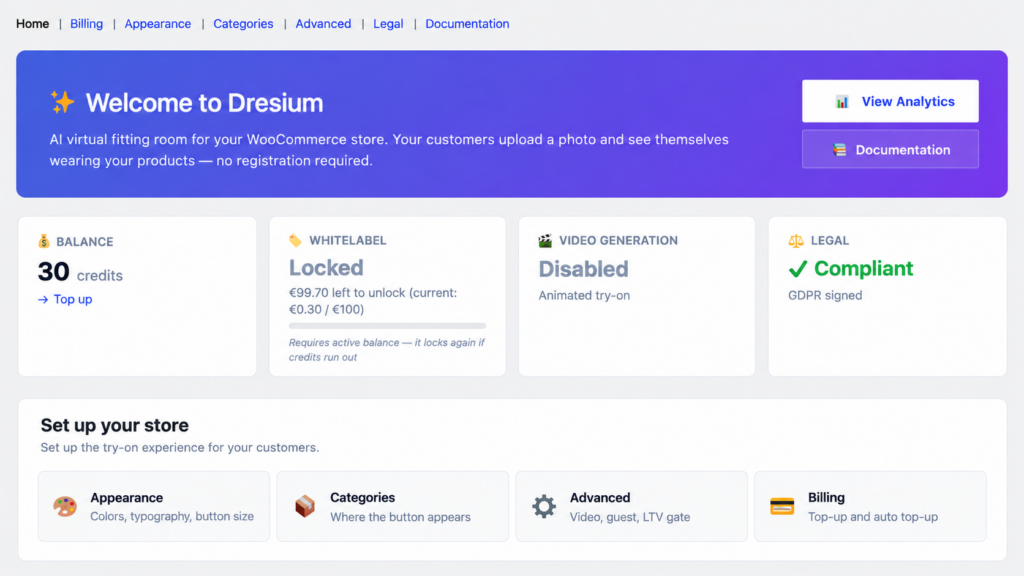
The first time you open the Dresium admin page, a welcome box offers 1,000 free credits in one click, with no credit card and no commitment. That’s enough to test every feature on your live store. In recent versions, your merchant account is created automatically when you claim those credits, and the connection between your store and Dresium is secured with an HMAC-signed API key that never leaves your WordPress server.
All settings live under WooCommerce → Settings → Dresium.
On new installs, the automatic button is off by default, so nothing appears on your storefront until you decide. The Dresium admin page includes a dedicated card to activate the Try-On button in one click. It works on both classic WooCommerce templates and block themes (Gutenberg / Full Site Editing).
Once it’s on, the button appears on your product pages and works for guest visitors too. Your customers never need a Dresium account.
By default, the try-on is shown on all categories. From the Categories tab, untick the ones where it doesn’t make sense (accessories, gift cards, beauty) and keep it on dresses, shirts, jackets, trousers and hoodies. Categories are displayed as a tree: to enable a subcategory, its parent must be enabled too.
This matters for budget as well. Credits are only consumed when a shopper generates a try-on, so focusing the button on fit-sensitive categories keeps spend where it drives decisions.
In the Appearance tab you control button size, preset palettes or custom colors, typography, border radius and the CTA text. The preview updates live. It’s the same idea as the Style Inspector showcased on the brands page: tune colors, shapes and fonts until the plugin looks like your own team built it.
Quick tip: use a clear action label that fits your brand voice (“Try it on”, “See it on me”) and keep your primary brand color, so the button never feels bolted on.
The Legal tab lets you sign the Privacy Policy, the Data Processing Agreement (GDPR Article 28) and the Terms of Service directly inside WooCommerce settings. In version 3.4.x signing no longer blocks the button and is shown as a reminder, but for any store asking shoppers for a photo, our advice is simple: sign before go-live. According to the WordPress.org listing, shopper photos are sent over HTTPS, aren’t stored permanently unless the shopper saves them to their gallery, and are never used for AI training.
Dresium is pay-as-you-go. Installation is free, there’s no subscription or monthly fee, and you only pay when a shopper generates a virtual try-on. The brands page lists €0.10 per generation. The current price is always shown in the Billing tab before each top-up, and credits you’ve already bought are spent at the rate in force when you bought them. Failed generations are refunded automatically.
Credits are billed in EUR through a secure Stripe checkout. If you sell outside the Eurozone, your card is charged in your local currency at your bank’s exchange rate. From the same tab you can enable auto top-up so the service never pauses, plus a low-balance email reminder at a threshold you set.
Always test the flow the way a customer will experience it, ideally on mobile and in a private window:
Everything happens on your store, with no redirect to external sites. The try-on interface follows the shopper’s browser language and is available in English, Italian, French, German and Spanish, which helps if you sell across Europe or run a multilingual store.
The plugin offers three integration methods:
Many page-builder themes replace the standard WooCommerce product layout, which can stop the automatic hook from firing. In that case, place the button manually:
| Builder / editor | How to add the button |
|---|---|
| Elementor | “Shortcode” widget with [dresium_tryon] |
| Divi | “Text” or “Code” module with [dresium_tryon] |
| WPBakery | Generic shortcode element with [dresium_tryon] |
| Gutenberg | Search for the “Dresium Try-On CTA” block |
The shortcode reads the current product from the WooCommerce loop, so no parameters are needed. If you use the shortcode or block, disable auto-injection under WooCommerce → Settings → Dresium → Advanced → Auto-injection to avoid duplicate buttons.
If your theme ships aggressive CSS resets, the Advanced area also offers Shadow DOM CSS isolation (on by default for new installs), which keeps the try-on windows separate from your theme styles.
A virtual try-on without numbers is just a nice effect. The plugin includes a real-time dashboard showing views, try-ons, purchases, conversion rate and attributed revenue, with 7, 30 and 90-day filters.
Attribution works like this: when a shopper generates a try-on and buys the same product within 7 days, the sale is attributed to Dresium, and refunds in the same window are subtracted. Guest purchases without a customer ID aren’t attributed, so the numbers lean conservative by design.
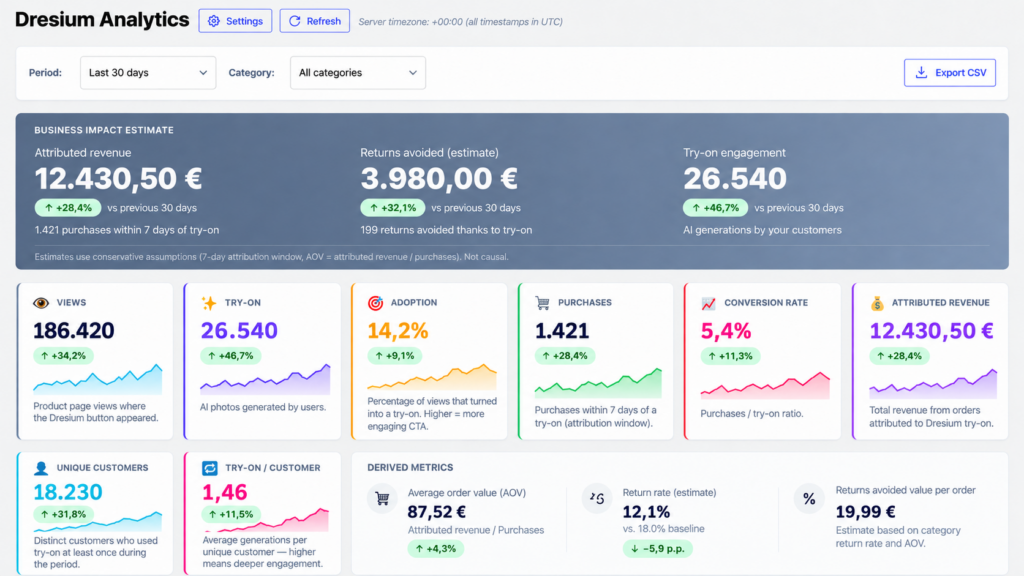
How to read the data in your first weeks:
The button doesn’t show up. Make sure you activated it from the dedicated card (it’s off by default on new installs), that the product’s category is enabled, and that your theme isn’t using a page-builder template. If it is, use the shortcode or block.
I see two buttons. You’re using the shortcode or block alongside auto-injection. Turn off auto-injection in Advanced settings.
The button looks off. That’s likely a CSS conflict with your theme. Check that Shadow DOM isolation is enabled.
Shoppers see “The store has run out of credits”. Your balance is at zero. Top up from the Billing tab and consider auto top-up.
Your site runs on HTTP. The API only works over HTTPS, so install an SSL certificate first.
Before you announce your virtual fitting room:
For the bigger picture on AI fitting rooms and how they change the fashion shopping journey, read our complete Virtual Try-On guide for fashion e-commerce. To see the shopper experience in more detail, visit How it works.
Dresium is also available as an official Shopify app with zero-code setup from the Shopify marketplace. For Magento, PrestaShop or a proprietary CMS, Dresium offers a custom integration. Per the brands page FAQ, it comes down to a simple script snippet pasted into your site’s head, with the button and experience customizable through HTML parameters. Every option is covered on the Dresium for Brands page.
You get a free install, 1,000 welcome credits to test with, no monthly fee, and a dashboard that measures the impact on conversions and returns. The fastest way to find out whether virtual try-on works for your catalog is to try it on your own store.
Download the Dresium WooCommerce plugin, or explore every integration path at dresium.com/brands. Questions about setup? The Dresium team also answers on WhatsApp, as listed on the brands page.
In WordPress, go to Plugins → Add New, search for “Dresium”, install and activate it. Then open the Dresium admin page, claim your welcome credits and switch on the Try-On button in one click. WooCommerce must already be active.
WordPress 6.6 or higher, WooCommerce 9.9 or higher, PHP 7.4 or higher, and a site running on HTTPS. The plugin is HPOS-compatible and works with major themes and page builders.
Installation is free and there’s no subscription. You pay per use, only for try-ons your shoppers generate. The brands page lists €0.15 per generation, and the current price is always shown in the Billing tab. You get 1,000 free credits on first access to test the plugin.
No. Shoppers use the virtual try-on for free, even as guests, directly on the product page with no external app.
Yes. If your page builder replaces the product page template, add the [dresium_tryon] shortcode or the “Dresium Try-On CTA” Gutenberg block, and disable auto-injection to avoid duplicates.
No. According to the brands page, Dresium runs asynchronously on its own dedicated servers, keeping your store fast.
Photos are sent over HTTPS to Dresium servers for AI processing. They aren’t stored permanently unless the shopper saves them, and they’re never used for AI training. You can sign a Data Processing Agreement (GDPR Article 28) inside the plugin.